
For restaurants & cafés

Menus that are always current — online and on every table.

Save your menu PDFs in a Dropbox or OneDrive folder. Your website, your Google profile link and the QR codes on your tables always open the latest version — change a price, replace the file, done.

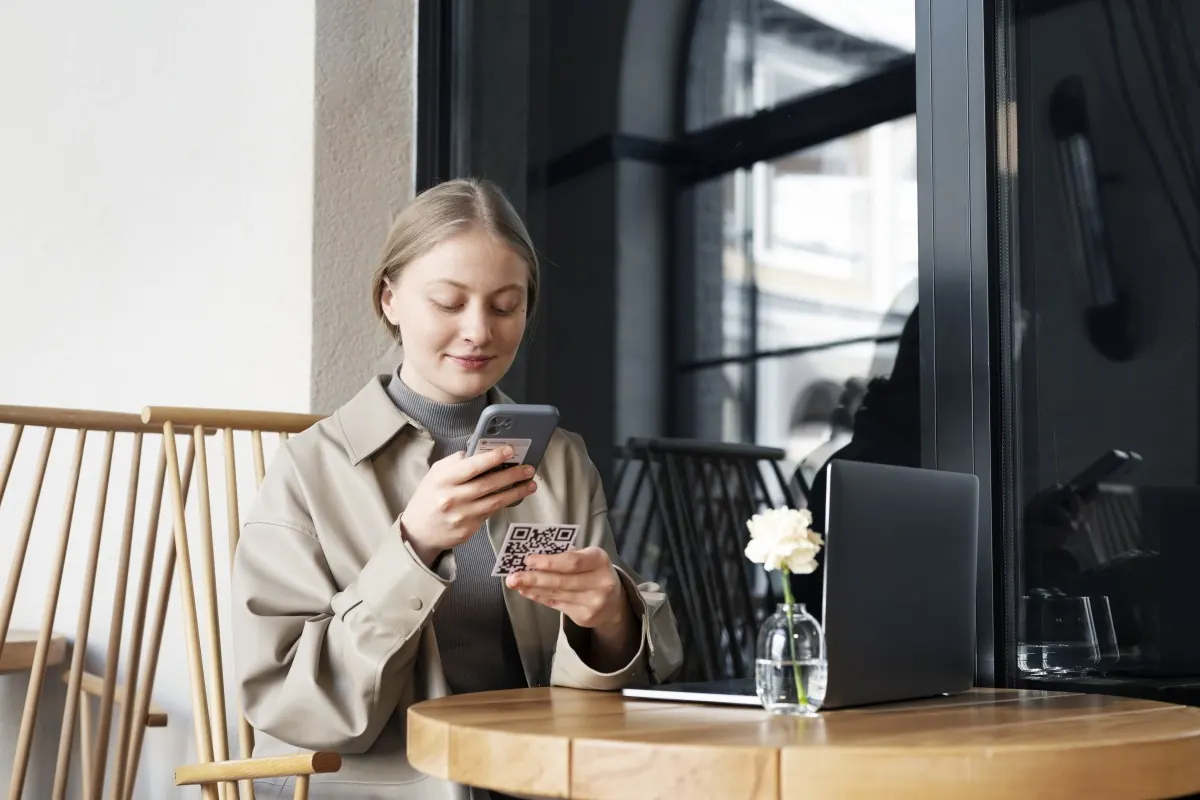
Guest scanning a table QR code in a sunny café with food on the table
How you'd use it

Three ways restaurants & cafés use FolderBloom

01

One menu link everywhere

Add a “View our menu” button to your site, Google profile and social bios. It always serves the newest PDF, so there's never an old menu floating around.

Your folder
  • Dropbox / Website / Menus
  • Dinner Menu.pdf
  • Brunch Menu.pdf
  • Drinks & Wine List.pdf
  • Kids Menu.pdf
On your websiteSingle-file buttons
  • A separate “Download the menu” button per menu
  • View in the browser or download
  • Replace the PDF — every link updates
02

Table QR codes that never go stale

Print a QR code for each menu once. When prices or dishes change, replace the file — the codes already on your tables keep working.

Your folder
  • Menus / Dinner Menu.pdf
  • QR code (PNG or print SVG)
  • Table tents · windows · takeout bags
On your websiteQR codes
  • Download print-ready QR codes from the dashboard
  • “Updated” badge shows guests it's the latest
  • See how often each menu is opened
03

Seasonal menus and dish photos

Schedule the holiday menu to appear on December 1 and disappear after New Year's Day, and keep a gallery of your best dishes that the team can update from a phone.

Your folder
  • Dropbox / Website
  • Menus / Holiday Menu.pdfScheduled
  • Dishes / 32 photos
  • Private Events / Packages.pdf
On your websiteSchedule + gallery
  • Publish and remove menus on dates you choose
  • Masonry or slideshow gallery of dishes
  • Event packages and catering menus as PDFs
Why it fits

What makes it work for you

QR codes that last

Codes point to a permanent link, so reprinting is only needed when your design changes — never your menu.

A menu button anywhere

Drop a single “View our menu” button onto any page of your site.

Seasonal menus on autopilot

Set a start and end date and the right menu shows up on its own.

Mouth-watering galleries

Food photos compressed for fast loading on guests' phones.

Recommended package

Files

Menus, QR codes and scheduling are all in the file library. Add Gallery Basic for dish photos.

Compare all packages

Good to know

Keep allergen and nutrition information in the same folder as the menu so guests always see matching versions — and check it whenever the menu changes.

QR codes only work for files that aren't password-protected, so keep menus in a public folder.

Questions

FolderBloom for restaurants & cafés: FAQ

Do I need to reprint QR codes when the menu changes?

No. Each QR code points to a permanent link; replacing the PDF in your folder updates what guests see.

Can guests view the menu without downloading it?

Yes — PDFs open right in the phone's browser, with a download option if they want to keep it.

Can staff update the menu from their phones?

Yes — anyone with access to the shared Dropbox or OneDrive folder can replace a menu or add photos.