
Everything FolderBloom can do with your folders
The basics first: a folder from Dropbox or OneDrive, shown on your website and kept up to date. Everything else is there when you need it.
Replace the PDF. Keep the link.
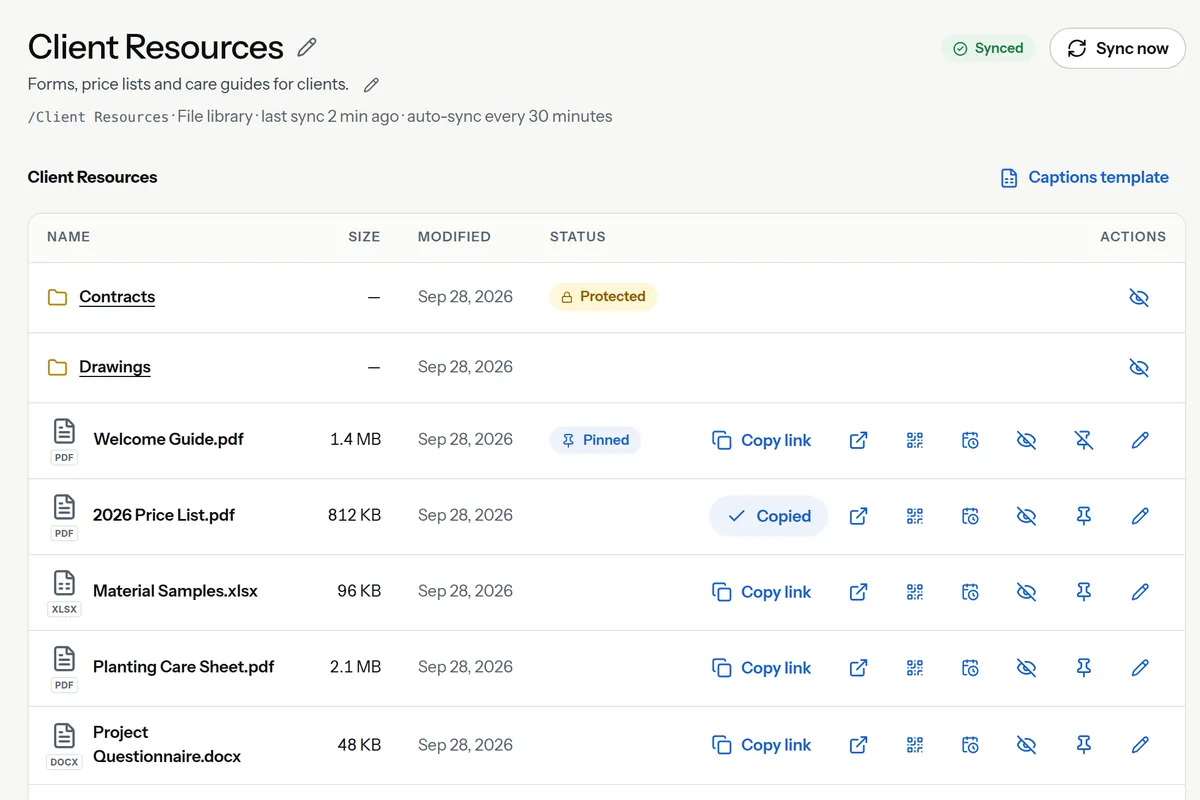
Every file gets a link that follows the file itself, not its name or location. Save a new version over the old one, rename it, or move it within the folder — links in emails, QR codes and old pages keep working.
- The new version is served as soon as FolderBloom has synced the change
- A deleted file stops downloading — the link never opens a different file
- If you delete a file and upload a similar one, you decide whether the old link should open it
Who can see it
Choose this when you publish a folder; change it any time. Folders inside follow the same setting unless you change them, and nothing outside the folder is ever shown.
Public
- Who can see it
- Anyone visiting your website
- How they get in
- Nothing to do
- Good for
- Price lists, forms, menus, newsletters
Password-protected
- Who can see it
- People you’ve given the password
- How they get in
- They type the password
- Good for
- A contracts folder, members-only files
Private client folder
- Who can see it
- Only people you invite
- How they get in
- They sign in with a link we email them — no password to share
- Good for
- Each client’s own documents or photos
A locked folder shows nothing until it’s unlocked.
Until someone enters the password, visitors see a locked folder — no file names, sizes, thumbnails or search results.
- Folders inside are protected too
- Change the password and everyone is signed out
- Repeated wrong guesses are slowed down
bloom-demoOpen the demo Drop photos in a folder. Get a fast gallery on your site.
FolderBloom makes smaller, web-ready copies of each photo so pages load quickly on phones, and removes hidden camera details such as location. Your originals stay in your storage.
- Gallery grids and slideshows; click a photo to see it full-screen
- Captions can come from a simple spreadsheet saved in the folder
- Choose a gallery package by how many photos you’ll show






Show your files
Lists, cards and galleries
A file list, a compact list, cards, picture tiles, photo galleries, slideshows, logo carousels and single images. Music and audio files get a Play button, so visitors can listen without downloading — light or dark, in your colors.
See it liveDocument previews
Visitors open PDFs, images, Word, Excel and text files right in the browser — page through, zoom, and download only if you allow it. Your Dropbox or OneDrive links are never shown.
See it liveSingle-file buttons
Put one file on a page as a button — “Download our menu” — that always opens the latest version. Or point it at a folder and it always opens the newest file there: add October Newsletter.pdf next to September’s and the “Latest newsletter” button and its link switch on their own.
See it liveCollections
Hand-pick files from different folders and show them together — “Forms for new clients”, “This season’s price lists” — as a list or cards, in the order you choose. Nothing is moved or copied in Dropbox or OneDrive, each file keeps its own privacy settings, and visitors never see your folder names.
See it liveRestaurant menus
Keep your menu in a spreadsheet — Category, Item, Price, Description — and FolderBloom lays it out on your site. Each menu also gets its own simple page with your logo, for Google Business Profile and QR codes. Every plan. Starting from a PDF or a photo of your current menu? The menu converter turns it into the spreadsheet for you to check.
See it liveSpreadsheet tables
Show an Excel or CSV file as a table visitors can sort and search. Choose which columns appear and how each one lines up, and turn web addresses into buttons such as “Visit website”. Edit the spreadsheet and the table updates — price lists, schedules, inventories. Replacing the file with a new one under a different name? Choose “Always the newest spreadsheet” and the table follows the folder. Every plan.
See it liveRecipes
Write a recipe in a spreadsheet — ingredients, steps, servings and times — and FolderBloom lays it out with numbered steps and ingredients visitors can tick off. Visitors can change the servings and the amounts adjust; add step photos (1.jpg, 2.jpg…) and a YouTube or Vimeo link for a how-to video. Search engines get it as a recipe too. Every plan.
See it liveMusic and audio
MP3, WAV, M4A and other audio files get a Play button beside Download, so visitors can listen right on the page — sermons, podcasts, demos and samples. Every plan.
See it liveDownload all
Visitors can download a whole folder at once; very large folders are split into numbered parts.
Photos
Photo galleries
Drop photos in a folder and get a gallery that loads fast on phones. FolderBloom makes smaller web-ready copies; your originals stay in your storage. Add captions in the dashboard or from a spreadsheet saved in the folder.
See it liveSlideshows
Photos one at a time, with swipe, autoplay and pause — great for homepages, portfolios and listings.
See it liveBefore & after sliders
Pick a before photo and an after photo (or add the pairs FolderBloom suggests from file names) and visitors drag a slider to compare. Every gallery package.
See it liveLogo carousels
Show client, sponsor or certification logos in a smooth, endless scrolling strip that pauses on hover — optionally gray until a visitor points at one. Add a links.txt file to make each logo open its website; SVG logos work too. Every gallery package.
See it liveTidy pictures automatically
Flyers and logos exported with leftover canvas — see-through space, a frame line or a big empty margin — are trimmed for the web, and SVG logos become sharp, see-through images. Ordinary photos and your original files are never changed.
Single images with an entrance
Put one photo on a page, with an optional caption, and have it fade, zoom, slide or sharpen into view as visitors scroll to it; visitors can click to see it full screen. Replace the photo in your storage and the page follows — or choose “Always the newest photo” and adding a new photo to the folder updates the page. Every gallery package.
See it liveTeam pages
Keep your staff list in a spreadsheet — name, title, bio, phone, email and LinkedIn — and save each person’s photo in the same folder under their name. FolderBloom lays out a “Meet the team” page with optimized photos, tap-to-call numbers and email links spam bots can’t harvest. Included with gallery packages.
Stays up to date
Updates on its own
Dropbox and OneDrive tell FolderBloom when something changes, and a regular check catches anything missed. Only the changed files are read.
Links that never break
A file’s link follows it when you save over it, rename it or move it within the published folder. A deleted file’s link never opens a different file.
“New” and “Updated” labels
Recently added or replaced files are labeled automatically, so visitors spot the latest newsletter or price list.
Scheduled files
Choose when a file appears and when it’s removed — next year’s price list on January 1, a holiday flyer until the 26th.
QR codes for every file
Download a print-ready QR code for any file. Printed codes keep working when you update the file.
Update alerts
Visitors can ask to be emailed when new files are added to a public folder. They confirm first, get at most one email a day, and can unsubscribe with one click.
Privacy and control
Password-protected folders
Protect any folder. Nothing inside is shown — not even file names — until the right password is entered. The password covers that folder wherever it appears on your site, and admins can look it up or change it any time.
Private client folders
Give each client their own folder. They sign in with a link FolderBloom emails them and see only what you shared — as files or a photo gallery. Invisible to everyone else. Add your logo, colors and a welcome message, and use your own address such as files.yourbusiness.com.
Check before publishing
One click shows what visitors will see, what’s public or protected, and anything to fix — with a test that browses the folder as a visitor would.
Download counts
See which files get downloaded, by day, with a spreadsheet export. No visitor IP addresses are kept with these counts.
Setup and teams
Quick publish
Show this folder on my website: choose the folder, choose a look with a live preview, and copy one line of code — sensible settings are picked for you. Customize everything later on the embed’s Design tab.
One line of website code
Paste it into any page that allows HTML. It won’t clash with your website’s design. WordPress plugin included.
One plan per website
Confirm the website is yours by pasting a short code into one of its pages, uploading a small file or adding a DNS record. example.com and www.example.com count as one; a staging address and your own computer work for testing.
Teams and many websites
Invite owners, admins, editors and view-only members. Manage every client’s website from one account, and set a starting folder so editors only ever see the part of Dropbox or OneDrive meant for the website.
Copy a design, publish in bulk
Reuse one design on other embeds of the same kind, and publish many folders at once — handy for agencies.
Summary emails
Top downloads and traffic for every website, weekly or monthly — easy to forward to clients.